
Family Compass: Guiding Families Toward Student Success
Quick Start Guides
Welcome, Families!
to your one-stop resource hub to help you support your child's learning journey with our district's technology and tools. Below are quick start guides to our most used digital tools. If you are looking for more in-depth instructions on these or other tools, our Timely Tools section or Everyday Resources can provide you with more tech support for many frequently asked questions about our most heavily used technology tools.
Getting Started with Canvas as a Parent
As a parent, you can sign up for a free Canvas account that lets you observe your child's activities. This allows you to view assignments, due dates, announcements, and grades without interacting with the course content.
To begin, your student will need to generate a "pairing code" from their Canvas account. This code is unique to them and will link your observer account to theirs. Make sure to get this code from your child.
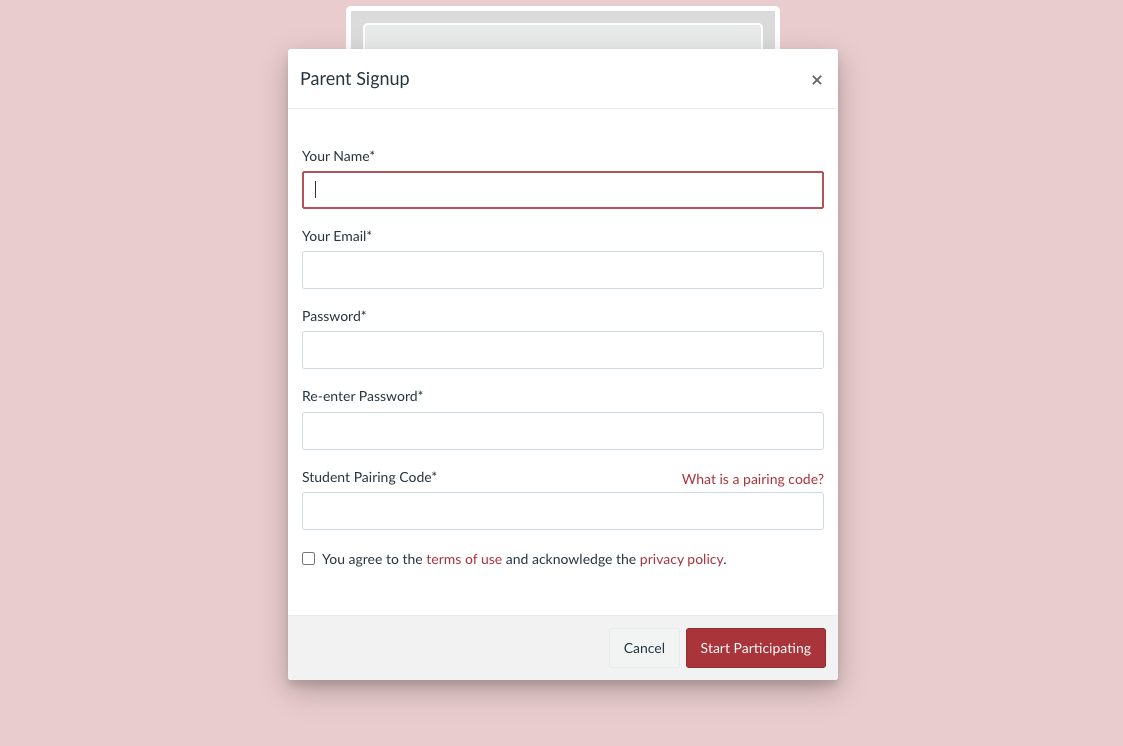
Creating Your Observer Account
Once you have the pairing code from your student:
- Go to our district's Canvas login page: Canvas Login Page
- Click on the "Click Here For an Account" link (or similar, typically below the login fields).
- Select "Parents sign up here."
- Enter your name, email, create a password, and enter the student pairing code.
- Click "Start Participating" to create your account.
You can add multiple students to your observer account after initial setup.

Simplified Access with Clever
Clever simplifies how students access educational applications with a single sign-on. Students typically log into Clever using their school-provided credentials, meaning they only need to remember one username and password to access many tools. Their Clever QR code can also be found on their ID Badge.
The Clever portal organizes all their learning apps in one easy-to-find place.
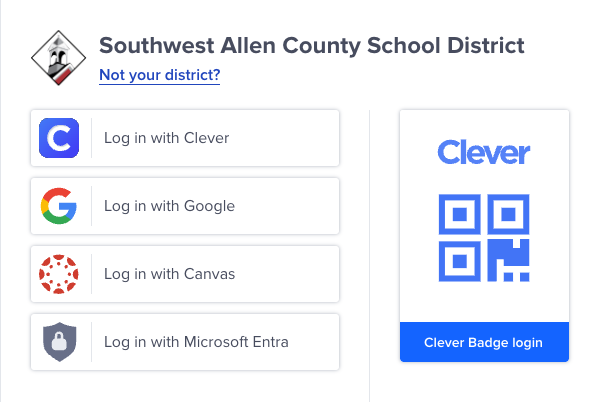
How Your Student Logs In
Depending on their grade level and school, students can usually log in to Clever using:
- Log in with Google: Common for students with district Google accounts.
- Log in with Active Directory: Often used by older students.
- Clever Badge: Younger students (K-2) typically use a unique QR code badge provided by their teacher for quick and easy login.
Once logged in, they will see a personalized portal with all the applications they have access to, making it easy to find their assignments and resources.
_1750170531.png)
PowerSchool – SACS’ Student Information System
PowerSchool is our official Student Information System (SIS). It allows parents to securely access their child's attendance records, official grades, schedules, and demographic information. This is where the most up-to-date and authoritative information about your child's academic standing resides.
It's distinct from Canvas, which focuses on daily assignments and learning activities, while PowerSchool maintains the formal record.

Accessing Your PowerSchool Account
To access your PowerSchool Parent Portal:
- Go to the SACS PowerSchool Parent Portal login page: PowerSchool Login Page
- District Code is FZJN
- Enter your parent username and password.
- If you don't have an account or have forgotten your credentials, please contact your child's school office for assistance.
Once logged in, you can view information for all your linked students, ensuring you have a complete picture of their progress.
Your Central Communication Hub
ParentSquare is Southwest Allen County Schools' (SACS) primary platform for school-to-home communication. It's designed to keep you informed and engaged in your child's education, providing a safe and secure environment for all communication from the district, your school, and your child's teachers.
It streamlines messages, alerts, and information into one easy-to-manage platform.
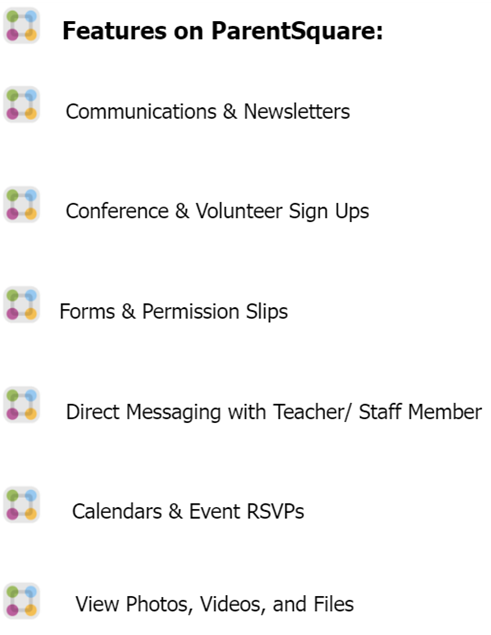
Key Features & Benefits
With ParentSquare, you can easily:
- Receive important alerts, notifications, and emergency messages.
- Check school and classroom updates.
- View the school calendar for upcoming events and activities.
- Fill out forms and permission slips digitally.
- Sign up for parent-teacher conferences and volunteer opportunities.
- Communicate directly with teachers and school staff in a secure environment.
- Receive photos and videos of school activities.
- Access information in your preferred language.

Getting Started & App Download
Most SACS families will automatically receive an invitation email or text from ParentSquare to activate their account. We highly recommend downloading the ParentSquare mobile app for the best experience and instant notifications.
  |
If you haven't received an invitation, please contact your child's school office.
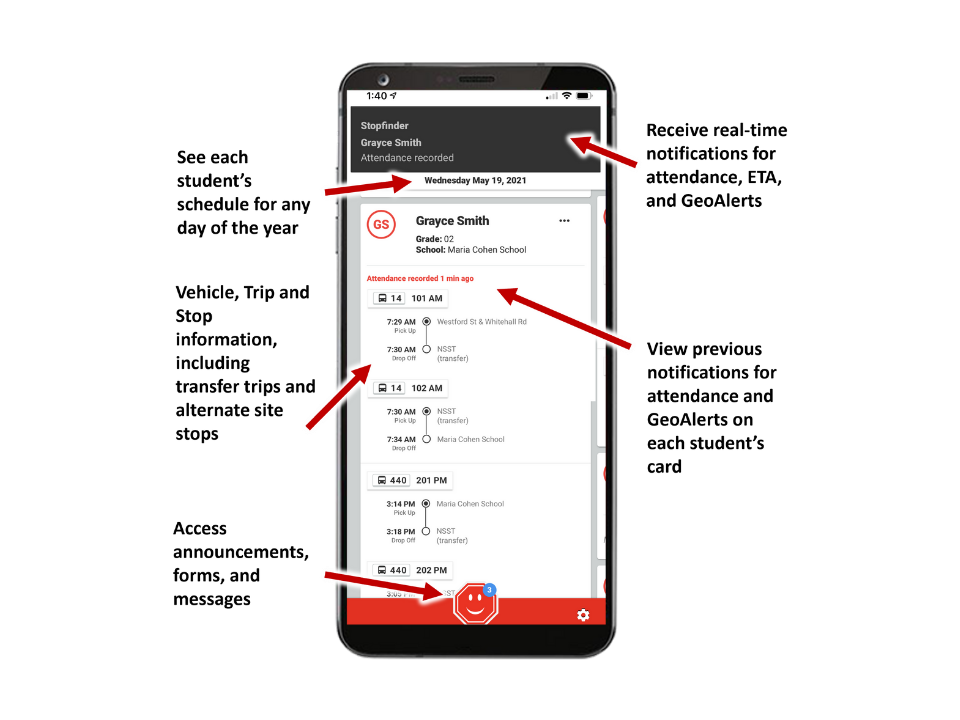
- View your student’s daily transportation assignments – including transfer trips and stops
- Securely share your student’s schedule with other caregivers
- Receive notifications and updates related to transportation
- Send real-time vehicle location notifications based on GeoAlert regions you create for your student
- Send Estimated Time of Arrival notifications based on your student’s stop
For more information, on SACS app usage, visit our StopFinder page


Get Involved - Build Our Community











5004 Homestead Road
Fort Wayne, IN 46814
Office: 260-431-2101
Attendance: 260-431-2105
Fax: 260-431-2199
School Day: 9:15 am - 3:40 pm
Directions
 Covington Elementary School
2430 West Hamilton Rd.
Fort Wayne, IN 46814
Office: 260-431-0501
Attendance: 260-431-0505
Fax: 260-431-0599
School Day: 8:35 am - 3 pm
Directions

Deer Ridge Elementary School
1515 S. Scott Road
Fort Wayne, IN 46814
Office: 260-431-0701
Attendance: 260-431-0705
Fax: 260-431-0799
School Day: 9:15 am - 3:40 pm
Directions

Haverhill Elementary School
4725 Weatherside Run
Fort Wayne, IN 46804
Office: 260-431-2901
Attendance: 260-431-2905
Fax: 260-431-2999
School Day: 9:20 am - 3:40 pm
Directions

Lafayette Meadows Elementary School
11420 Ernst Road
Roanoke, IN 46783
Office: 260-431-0601
Attendance: 260-431-0605
Fax: 260-431-0699
School Day: 9:15 am - 3:40 pm
Directions
 Whispering Meadows Elementary School
415 Mission Hill Drive
Fort Wayne, IN 46804
Office: 260-431-2601
Attendance: 260-431-2605
Fax: 260-431-2699
School Day: 8:35 am- 3 pm
Directions

Summit Middle School
4509 Homestead Road
Fort Wayne, IN 46814
Office: 260-431-2501
Attendance: 260-431-2505
Fax: 260-431-2599
School Day: 8:15 am -3 pm
 Woodside Middle School
2310 West Hamilton Road
Fort Wayne, IN 46814
Office: 260-431-2701
Attendance: 260-431-2705
Fax: 260-431-2799
School Day: 7:40 am - 2:25 pm
Directions

4310 Homestead Road
Fort Wayne, IN 46814
Office: 260-431-2200
Attendance Grades 9-12:
260-431-2205
Fax: 260.431.2299
School Day: 7:40 AM - 2:30 PM
Directions

4310 Homestead Road
Fort Wayne, IN 46814
Office: 260-431-2210
Grades 6-12